I would like to put a number of family photographs on my website. I placed six standard sized images on my page in .jpg format, but I was told they took for ages to load. Is there any way of speeding up the loading ?
best wishes,
Yorkie_Bar, Yorkshire,
UK.
The reason why the webpage with your photographs on is taking a long time to load is that the file size of six images is quite large.
One reasonably sized image could have a file size of 35 - 50 KB even in .jpg format, so multiply that by six and the visitor to your page is waiting for 210 - 300 KB of images to load on their screen.
Increasing the compression of the image will reduce the file size but compromise the quality of the images, not something you would wish to do to your favourite Aunt or Uncle photograph.
One solution I have found is to have a page of what are termed "thumbnails". In your case you would have a page of six small images of your photographs on one page, each image would be linked to a separate webpage with the full sized image on, this could also "open in a new window" for ease of returning to the "Thumbnail page".
A thumb nail of size 120 x 80 pixels could have typically have a file size of under 5 KB, so the entire page would only comprise of about 30 KB of images. The page with one of the full sized photographs on would have an image file size of about 35 - 50 KB so would load reasonably quickly.
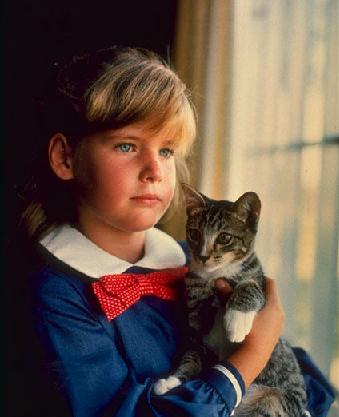
Take this typical image (note: this is a stock photo posed by a model)
This image is 35.7 KB file size and 339 x 417 pixels dimensions. (file name girl_cat.jpg)
If you open the image in your image manipulation program you can resize it, in proportion to approx 80 x 100 pixels
My resized image is as follows:

This image is 3 KB file size and 84 x 104 pixels dimensions. (file name girl_catsm.jpg)
When setting up your Thumbnail page remember to instruct your visitors to click on the image to see the full size photograph.
Create the page using your standard wysiwyg editor such as Netscape Composer or Microsoft Frontpage Express.
If you have the full size image with the name girl_cat.jpg place it on a html page called girl_cat.html for ease of editing. This page only needs a title eg Family Photographs, the image and a caption beneath the image.
This is an example thumbnail page, showing
only one image of the six, click on the image to see the link to the full
size photograph.
|
 |
|
|
|
|
Click on thumb-nails to see enlarged photographs
To return to this page close the enlarged page window
The standard code for the thumb-nail image and it's link will look like this: <p><font face="Arial,Helvetica"><a href="girl_cat.html"><img SRC="girl_catsm.jpg" ALT="Click on this picture to see the full size photograph" height=104 width=84></a></font>
You can view the source by opening the webpage in Notepad or when the page is open in Frontpage express and click on View then Source.
An explanation of what the code means:
girl_catsm.jpg is the thumb-nail image file name, with the height and width, it's dimensions.
ALT is the alternative text description for the image.
girl_cat.html this is the webpage that holds the full size photograph girl_cat.jpg and you are taken there when you click on the thumbnail.
There are two shortcomings with preparing
the pages using a wysiwyg editor
1. The hyper-linked image has a usually
purple border around it that can look unsightly.
2. The hyper-linked page appears in the
same window, ie it replaces the first page.
Fortunately these two points can be easily recified by editing the code in notepad to the following: <p><font face="Arial,Helvetica"><a href="girl_cat.html" target="_blank"><img SRC="girl_catsm.jpg" ALT="Click on this picture to see the full size photograph" height=104 width=84 border=0></a></font>
The additional text is marked in bold. Note there is one space in front of the first t of target.
Performing this same procedure for each
of the thumb-nails will give you a photograph album,
you can be proud of !

Michael Fowler, December 2000